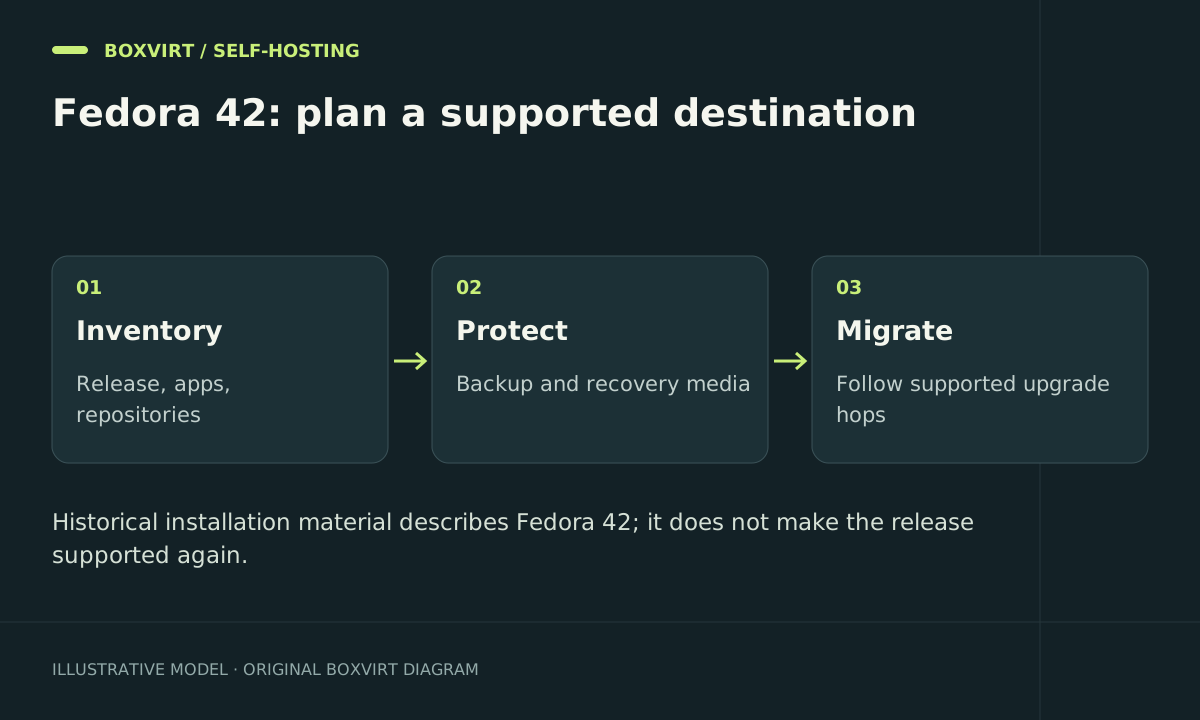
Fedora Server 42 is a historical release. Fedora’s Release Engineering community update records its end of life as 27 May 2026; at this review on 18 October 2026, it is outside that support window. Use a currently maintained Fedora Server release for a new server. Keep this article for understanding an old installation, reproducing a compatibility issue, or preparing a migration.
The installation sequence below describes the historical workflow. It is not a newly reproduced hardware test or a recommendation to expose an unsupported installation to the internet.
Decide what to preserve before migrating
Inventory the installed release, services, storage, users, scheduled jobs, firewall configuration, and application data. For an existing machine, collect a read-only baseline:
cat /etc/os-release
uname -r
lsblk -f
ip -br address
ip route
systemctl --failed
systemctl list-unit-files --state=enabled
Save the output privately; addresses, usernames, and service names can disclose operational details. A package list is helpful, but it is not a backup of application data or secrets.
For a VM, record its virtual disk and network settings too. If Fedora is running under Proxmox, combine an independent application backup with a guest backup and restore test. An old guest snapshot alone is not a complete migration plan.
Verify historical media only when reproduction needs it
If an isolated test genuinely needs Fedora 42, obtain its Server image and matching checksum/signature files through Fedora’s official archive infrastructure. Use Fedora’s published signing keys and verification instructions. Verify the signed checksum file, then verify the ISO against that exact file.
Checking a downloaded ISO’s hash against a value from an unrelated mirror does not establish who published it. Record the architecture and image filename so a later reader can distinguish the Server installer from a Workstation live image or a Cloud image.
For a maintained replacement, select media from Fedora Server’s current official download page and check its lifecycle before installing.
Historical installation sequence
- Boot the verified media and select the intended language and keyboard layout.
- Identify the target disk by model, size, and serial number where available. Back up existing data before accepting storage changes.
- Review partitioning, filesystem choices, encryption, and the capacity needed by the actual workload. Avoid a universal swap-to-RAM formula.
- Set the hostname and network configuration. In a VM, check that the virtual NIC joins the intended test segment.
- Configure the time zone and a unique administrative account. Choose root and remote-access settings deliberately.
- Review the final installation summary, complete the installation, and boot the installed system.
The installer writes the selected storage layout. If the wrong drive was selected, stop further writes and use the recovery plan; starting another installation does not reverse the first one.
Check service exposure after first boot
On a maintained replacement system, inspect the active services before opening access:
systemctl --failed
ss -lntup
getenforce
sudo firewall-cmd --get-active-zones
If firewalld is active, inspect the effective zone assigned to the actual interface, then list that zone’s services and ports. Do not assume a rule added to the default zone affects an interface assigned elsewhere. Check IPv6 listeners and reachability as well as IPv4.
Keep SELinux enforcing and investigate specific application denials instead of globally disabling it. Test SSH key login through a separate session before removing an existing working access method. Install only the management services you intend to use, and keep private administration behind the chosen trusted network or VPN.
For an old Fedora 42 host, package availability or a successful dnf operation does not prove that the branch receives current security fixes. Treat these checks as an inventory for migration, not a way to extend support.
Choose upgrade or replacement based on recovery evidence
Read Fedora’s current upgrade guidance for the source and target releases. Supported release jumps, third-party repositories, and package transitions need explicit review. Do not derive an upgrade command by replacing a release number in an old tutorial.
For a small server, a fresh supported VM plus a tested data restore can be easier to validate than carrying years of configuration forward. Keep the old instance powered off or isolated as a temporary recovery reference, avoiding duplicate addresses and background jobs. Verify the new instance’s application data before switching clients.
If you are choosing the platform from scratch, use the homelab planning guide to place OS selection alongside backup, network, and recovery requirements.
Frequently asked questions
Is Fedora Server 42 still supported?
The revised official Release Engineering update lists 27 May 2026 as its end of life. That date has passed at this review. Select a maintained release for ongoing server use.
Why do older notices mention a different end-of-life date?
The earlier schedule and advance notice used 13 May 2026. The later Fedora community update gives 27 May. Lifecycle dates can change, so this article uses that later primary update.
Does an archived ISO receive security updates?
Archive availability lets you retrieve historical software. It does not restore maintenance to an unsupported release.
Must I reinstall to leave Fedora 42?
Not necessarily. Review Fedora’s supported upgrade path and your installed repositories. Choose between a supported upgrade and a fresh installation based on a verified backup and application recovery plan.