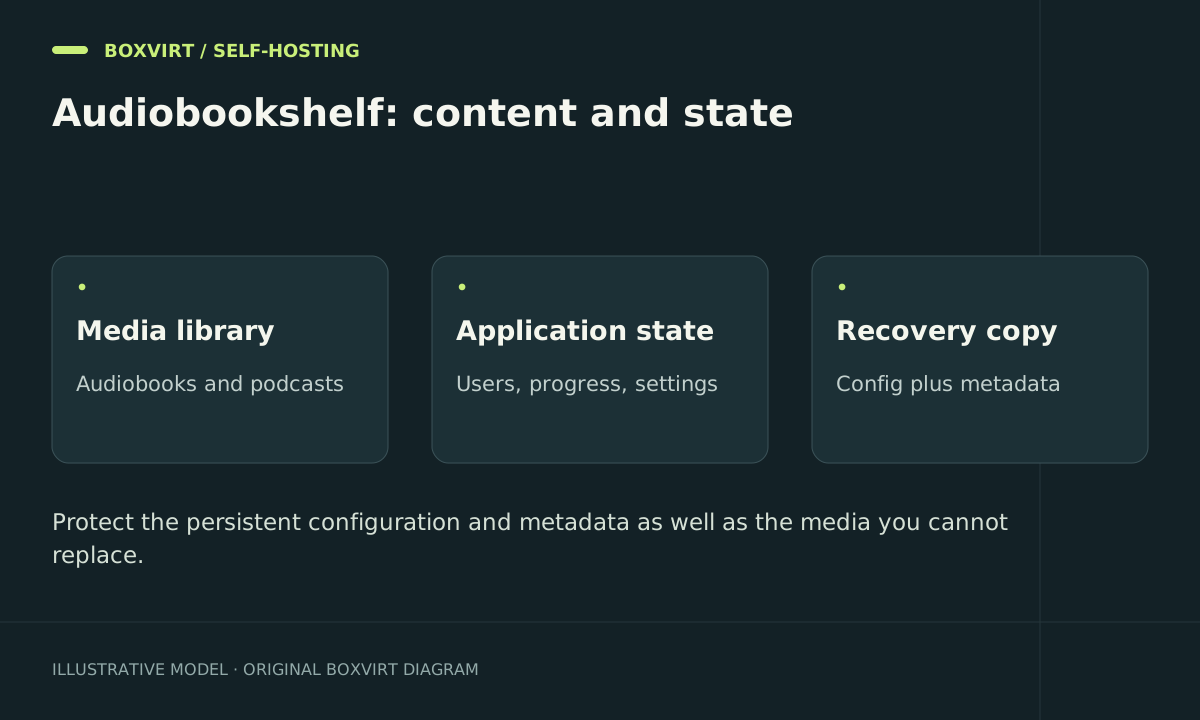
To run Audiobookshelf with Docker Compose, mount persistent /config and /metadata directories, mount your media at the paths the app will use, and protect the first administrator setup. Keep /config on storage local to the Docker host: it contains the SQLite database.
The example below publishes the app only on host loopback. It suits a host-based reverse proxy or SSH tunnel. A Traefik container should reach the app over an intentionally shared Docker network instead; its own loopback address is a different network namespace.
Prepare directories and choose an image
Use a maintained Docker Engine and the Compose plugin. Create a dedicated project directory, then create the persistent paths from inside it:
mkdir -p config metadata audiobooks podcasts
Keep these as separate directories rather than placing one inside another mounted directory. Decide where your actual audiobook files live before a large scan. If a NAS holds the media, distinguish that from placing the application database on the NAS.
Select an exact released Audiobookshelf tag from the project’s release list. The Docker reference documents numbered tags. Set AUDIOBOOKSHELF_IMAGE in a project .env file to the full selected reference, such as ghcr.io/advplyr/audiobookshelf: followed by your verified release number. Do not copy a version-shaped placeholder literally or use latest as a claim of reproducibility. Record a digest if you need an immutable image identity.
Create the Compose deployment
Save this as compose.yaml:
services:
  audiobookshelf:
    image: ${AUDIOBOOKSHELF_IMAGE:?Choose an exact released image tag or digest}
    restart: unless-stopped
    ports:
      - "127.0.0.1:13378:80"
    volumes:
      - ./config:/config
      - ./metadata:/metadata
      - ./audiobooks:/audiobooks
      - ./podcasts:/podcasts
Validate and start from that project directory:
docker compose config --quiet
docker compose pull
docker compose up -d
docker compose ps
The official image uses container port 80 in this layout. Host path ./audiobooks becomes /audiobooks inside the application. A library entry should use the container path.
If you want read-only media, add :ro to the media mount after checking which editing, upload, and podcast-download features you need. Keep configuration and metadata writable. Do not paste unrelated PUID variables and assume they control the image user; follow the image’s documented user configuration if you need to change it.
Protect first-time setup and add one title
On the Docker host, open http://127.0.0.1:13378. For an SSH-accessible remote host, an example tunnel is:
ssh -N -L 13378:127.0.0.1:13378 your-user@your-server
Replace the account and hostname with your own SSH destination. Open the local loopback URL while the tunnel is active. Create the administrator before giving other users a route to the service, then make a restricted account for normal listening.
Add a library at /audiobooks, import one title you are entitled to store, and verify metadata, playback, seeking, and progress. Restart only this service and confirm the title and position remain. Check file permissions if the library appears empty before changing network settings.
Add HTTPS without an alternate public port
For same-host Docker Traefik, use the network and labels pattern in the Traefik Docker HTTPS guide, with backend port 80. Remove the loopback port publication if you no longer need a host-based access path. For a separate LXC proxy, use a narrowly reachable backend address and the file-provider approach.
The Audiobookshelf proxy guidance requires WebSocket support and warns that certain added CORS headers can break login. Test the real hostname in the browser and a listening client, including a longer playback session. Avoid adding a generic header bundle without checking application compatibility.
Back up state and media separately
The built-in backup documentation states that its backups include the database and certain metadata cover images, not the media files. Copy those backup artifacts off the host and protect the audiobook/podcast library through a separate backup job.
For a filesystem backup of application directories, stop the app or use an application-consistent method; copying an active database file is not automatically a consistent backup. Preserve the Compose file and image identity. Restore to an isolated instance using the matching installation method, then verify users, progress, and a playable file.
Before upgrades, keep a pre-upgrade recovery point. Selecting the previous image alone may not undo data migrations. A Proxmox guest backup can be another recovery layer when the Docker host is virtualized, with external media covered explicitly.
Frequently asked questions
Can my audiobook files stay on a NAS?
Media and the SQLite configuration database have different requirements. A network media mount may fit your design, but keep /config local as the project documents and verify mount availability after a host restart.
Why does the library disappear after recreating the container?
Check the persistent mount sources and container library paths. An empty host directory mounted at the expected destination can look like lost content even when your original files remain elsewhere.
Why do login or playback fail only through Traefik?
Check WebSocket handling, router middleware, hostname, and client errors. In particular, review the project’s CORS warning before adding more headers.
Does the built-in backup include all my books?
No. Back up media separately and restore it alongside the corresponding application state when testing recovery.