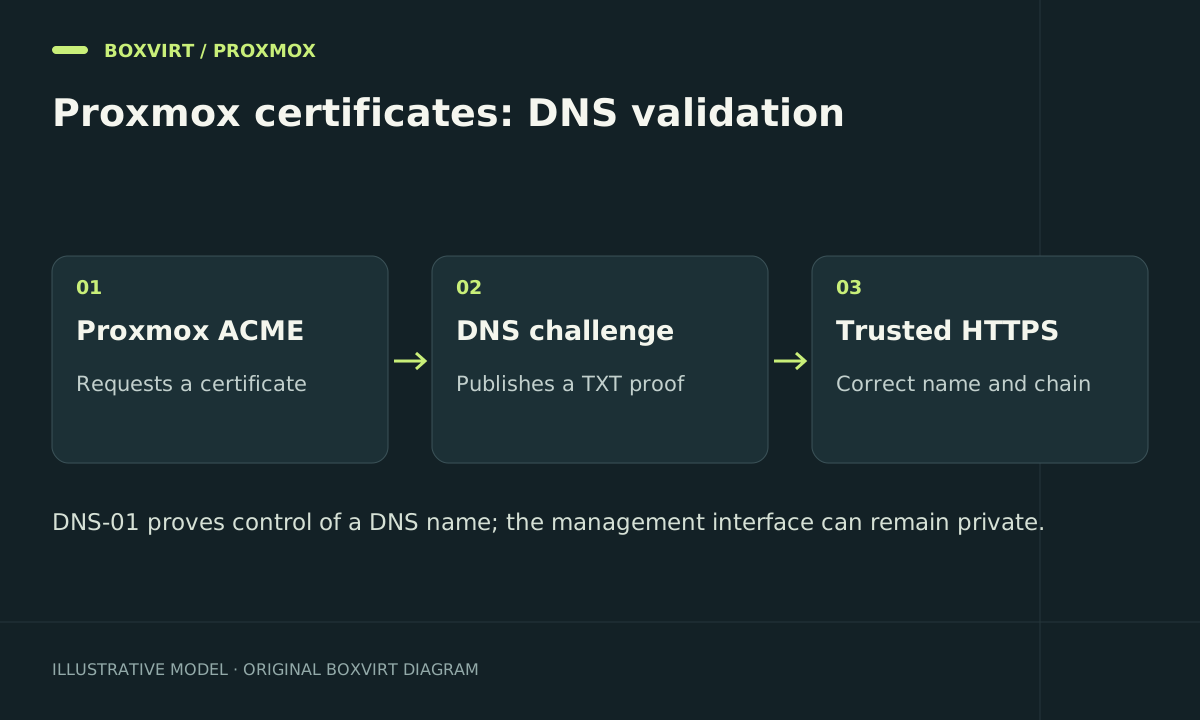
Use Proxmox VE’s built-in ACME client with a DNS challenge to obtain a trusted certificate for the management interface without opening port 8006 to the internet. The certificate authenticates a hostname; your firewall or VPN still decides who can administer the host.
This guide explains the documented workflow and checks. Provider credentials and renewal must be tested on your own installed release before treating the procedure as validated.
Prepare the hostname, DNS access, and recovery path
Use a name under a domain you own, such as pve.example.com. Internal DNS can resolve it to a private management address while public DNS publishes only the challenge record. A public certificate discloses its names through certificate transparency, so avoid sensitive naming conventions.
Before changing anything, confirm that you have console access, record the current certificate’s issuer and expiry, and save the relevant configuration securely. Check the node clock and outbound access to the certificate authority and DNS API. Use a dedicated DNS token with the narrowest zone and record permissions your provider supports.
For the surrounding access policy, start with the Proxmox management network plan. Do not add a public port-forward merely to remove a browser warning.
Select DNS validation instead of HTTP validation
With dns-01, the client creates a TXT record under _acme-challenge.pve.example.com; the CA checks that public record. Your management hostname does not need a public A record pointing to the node.
Proxmox’s standalone http-01 method instead needs inbound port 80, a public DNS address for the node, and no conflicting listener on that port. This is a different design. Choose one method based on your network rather than opening both unnecessarily.
Configure the built-in ACME workflow
- Open Datacenter → ACME and register an account against the CA’s staging directory for an initial test. Staging certificates are intentionally untrusted by browsers.
- Add a DNS challenge plugin. Select the DNS provider and supply the exact credential fields its integration requires. Keep those values out of shell history and screenshots.
- Open the node’s Certificates section. Add
pve.example.comas an ACME domain and select the plugin you created. - Select the staging account and request a certificate. Read the task log, including record creation, propagation, validation, and installation.
- Once validation works, register/select a production account and order the trusted certificate. Proxmox does not support changing an existing account’s directory URL in place.
A propagation delay is a wait between publishing the TXT record and asking the CA to check it. If validation fails, inspect the authoritative DNS response and token permissions before increasing that delay or retrying issuance repeatedly.
Verify the served certificate and hostname
From a trusted management client, use the same hostname that administrators will use:
openssl s_client -connect pve.example.com:8006 \
  -servername pve.example.com -verify_hostname pve.example.com \
  -verify_return_error </dev/null
Look for successful chain and hostname verification. -servername selects the TLS name; -verify_hostname checks that the certificate covers it. A certificate for this name does not validate a connection made to the raw IP address.
Check the browser’s certificate viewer as well, then test any API client that will connect. In a Terraform container, DNS and CA trust can differ from the host’s settings.
Monitor renewal and keep a supported rollback
Proxmox documents automatic renewal through pve-daily-update.service. Inspect recent results and the timer:
systemctl status pve-daily-update.timer
journalctl -u pve-daily-update.service --since '7 days ago'
Alert on expiry independently. A successful first order cannot prove that a token will still work after a permission change.
If a replacement certificate breaks access, use the local console and the release’s certificate management UI or pvenode tools to restore the previous custom certificate or revert to the node certificate. Consult pvenode help and the installed certificate-command reference for the supported operations. Never overwrite the cluster CA, its private key, or the automatically generated pve-ssl files to repair a web certificate.
Frequently asked questions
Does DNS validation expose the Proxmox web interface?
No. It proves control through public DNS. Keep port 8006 reachable only through your management network or VPN.
Why does the browser reject a successfully issued staging certificate?
Staging tests validate the workflow, but their issuer is not publicly trusted. Request a production certificate after the challenge works.
Why is the certificate valid in my browser but not in automation?
Check the automation client’s hostname, clock, and CA store. A container may use a different trust store. Fix that trust configuration instead of disabling verification.
Can I use one certificate for every cluster node?
Certificate installation is node-specific. Plan the names and renewal for each node you actually access; avoid copying private keys between nodes without a documented requirement.