If a MikroTik Simple Queue does not limit traffic, first establish that the connection traverses the intended router and queue. IPv4 FastTrack can bypass Simple Queues; a wrong target, an earlier queue or a switched path that never reaches the router can produce a similar symptom. A few counter increments do not prove the entire connection passes through the shaper.
Validation: documentation reviewed November 11, 2026. This is a diagnostic lab design, not measured shaping performance. Record RouterOS build, router model, interface path, queue settings and the connection’s IP family before testing. The selected example concerns IPv4 Simple Queues, not every possible Queue Tree or hardware-offload design.
Confirm which device routes the test connection
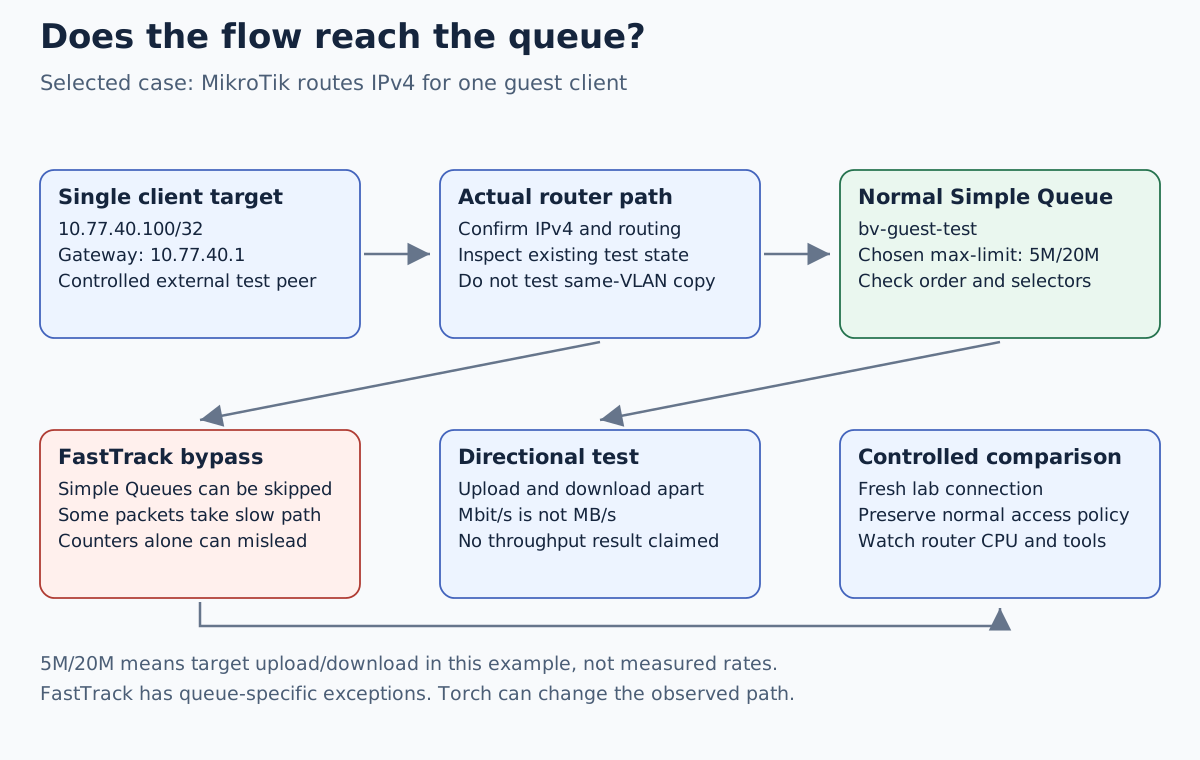
Here MikroTik is the IPv4 router, with guest client 10.77.40.100/24 and
gateway 10.77.40.1. A separate test server is reached through its WAN side.
This differs from a Layer 2 MikroTik switch whose VLAN gateways live on
OPNsense: a Simple Queue on that switch is not automatically in the routed
connection’s path.
Choose a test server you control with enough capacity beyond the chosen queue limits. Record its real address and the actual WAN interface. Do not use a file transfer between two same-VLAN clients as proof of internet shaping. Traffic that is switched elsewhere may never enter this router’s IP path.
Use the packet-chain explanation to map the flow and the forward policy guide to verify that the intended test is permitted before changing acceleration.
Write down one small queue and both directions
The target is a single disposable client, not the whole guest subnet. Our chosen limits are 5 Mbit/s upload and 20 Mbit/s download, seen from that client. They are example settings, not a recommendation for your internet connection or a promised result.
| Field | Candidate value |
|---|---|
| Name | bv-guest-test |
| Target | 10.77.40.100/32 |
| Parent | None for this isolated simple example |
| Maximum upload/download | 5M/20M |
| Burst | No extra burst configuration in this example |
| Schedule and packet marks | No additional selectors in this example |
An added candidate starts disabled:
/queue simple add name=bv-guest-test target=10.77.40.100/32 max-limit=5M/20M disabled=yes comment="Boxvirt M03 single-client lab queue"
Export the original configuration and record queue/FastTrack settings first. Use an authorized isolated router, preserve console access, and check whether an earlier queue already matches this target. Enable only this candidate in the planned lab exercise after reviewing order and existing parents.
Separate bypass from the wrong queue match
/queue simple print detail where name=bv-guest-test
/queue simple print stats where name=bv-guest-test
/ip firewall filter print stats where action=fasttrack-connection
/ip firewall connection print detail where src-address~"10.77.40.100"
Inspect target, position, parent, active time and any other selectors. The connection-table filter is only a starting view: inspect the full identified connection and reply tuple, including NAT, rather than assuming the source filter finds every relevant direction or connection origin.
FastTrack does not handle every packet of an accelerated connection. Some packets still take the slow path, so nonzero Simple Queue counters can coexist with a bypass. Check actual client transfer rate and connection state together.
The current documentation also notes an observer effect: running Torch or the packet sniffer can prevent the normal FastTrack path from being active. If shaping starts working only while inspecting traffic with such a tool, stop the tool and repeat the same controlled test before declaring the problem fixed.
Test a FastTrack exclusion without weakening access policy
On a small isolated router with one known FastTrack rule, a temporary lab comparison can disable that rule, end the disposable test connection and start a new one. Watch CPU load and permitted service behavior. Record the result, then restore the recorded acceleration setting. This is an observation step, not a production-wide performance recommendation.
For a persistent single-client exception, review a disabled copy of the existing FastTrack rule. Preserve its current state, interface, IPsec and other conditions; additionally exclude the target in both source and destination directions. Where those address selectors are otherwise unused, the candidate conditions are:
| FastTrack condition | Additional value |
|---|---|
| Source address | !10.77.40.100/32 |
| Destination address | !10.77.40.100/32 |
Both conditions must hold for traffic still eligible for this FastTrack rule. A packet with the client as either endpoint then stays on the normal path. If the original rule already has address restrictions, do not overwrite them; combine the policy deliberately, for example through a reviewed address-list design. Inspect every active FastTrack rule, not just the first visible row.
Do not add a broad action=accept rule ahead of security decisions simply to
skip FastTrack. The excluded connection must still pass through the normal
forward policy and its established/reply handling. Old accelerated test
connections can retain state; close them or remove only the specifically
identified lab connection. Do not flush unrelated connection state.
Measure upload and download independently
On the test client, a candidate test against a controlled server could use:
iperf3 -c 198.51.100.50 -t 20
iperf3 -c 198.51.100.50 -R -t 20
198.51.100.50 is a documentation placeholder for your reachable lab server;
the commands are not an instruction to test someone else’s host. The first
test sends from the client, the second sends toward it. Record protocol,
duration, actual endpoints, queue counters, achieved rate and router CPU.
M in the chosen queue rate is a decimal bit-rate unit. The corresponding
ideal payload equivalents are 0.625 MB/s for 5 Mbit/s and 2.5 MB/s for
20 Mbit/s, before overhead. Do not compare a download application’s MB/s
directly with an Mbit/s setting or require exact equality from a short test.
If the unshaped path cannot exceed the chosen limit, it cannot demonstrate that the queue is enforcing that limit. Establish the test’s available capacity and change one variable at a time. A quiet counter can mean a path or selector mismatch; a busy counter with a low rate can mean another bottleneck, not a successful diagnosis by itself.
Keep Queue Tree, IPv6 and switching separate
The FastTrack documentation distinguishes Simple Queues and global-parent Queue Trees from interface-parented Queue Trees. Do not generalize this Simple Queue finding into “FastTrack bypasses every type of queue.” Hardware offload, bridge forwarding, policy routing and a different queue placement need their own packet-path analysis.
Check whether the application uses IPv6 while the test concerned IPv4. Equivalent shaping and access policy must be designed and measured for the actual family. Do not disable hardware offload or IPv6 globally as a substitute for locating the connection’s real path.
For rollback, disable the uniquely named lab queue and restore the recorded FastTrack rule and its order. Retest management and ordinary permitted connections. Keep measurements labelled with their settings; no speed or latency improvement is claimed by this documentation-only guide.